Panels Judged in Daylight
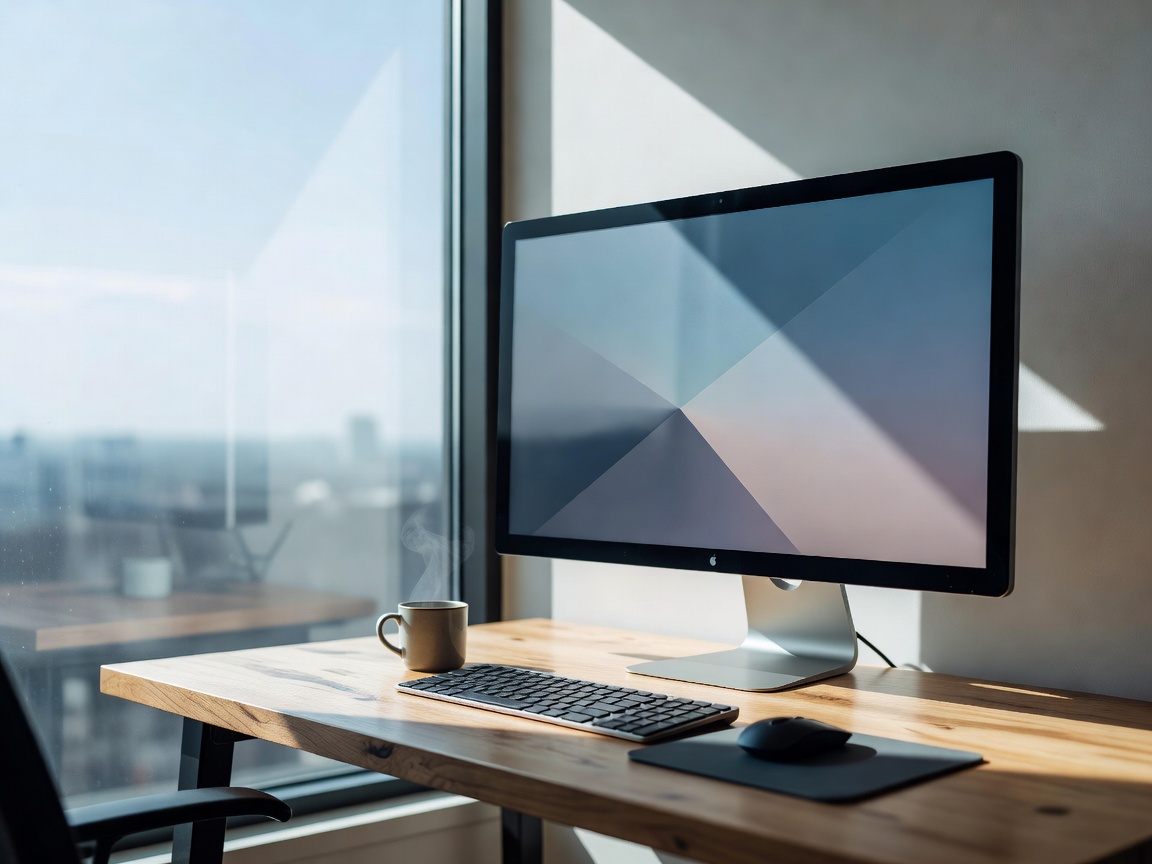
Most remote workers sit next to a window, not in a blackout studio. So that is where we test: a south-facing room, measured at 9 am, noon and after dark.
Test Method
Calibrate, then measure
We profile each panel with a Calibrite Display Plus HL and DisplayCAL (ArgyllCMS), recording sRGB and DCI-P3 coverage, average Delta E and white-point accuracy.
Ambient light log
A lux meter at the desk records daylight levels during each session, so glare notes are tied to actual numbers.
Text and motion
We read code, spreadsheets and long articles at native scaling, then check motion with scrolling text and a 120 Hz-plus cursor test.
Flicker and comfort
We use a slow-motion phone camera to check for PWM flicker at low brightness, and keep a daily log of eye strain over six weeks.
Findings
Pixel density beats raw resolution
What makes text look sharp is pixels per inch at your viewing distance. A 27-inch 1440p panel is about 109 PPI. A 27-inch 4K panel is about 163 PPI. At an arm's length, roughly 60 to 70 cm, testers working mainly with text noticed the jump to 4K at 27 inches straight away, especially on macOS, which scales best at around 220 PPI or at simple multiples. On Windows, 1440p at 27 inches with ClearType tuned was perfectly comfortable for a full workday.
Coating matters more than marketing brightness
By the window at noon, our desk measured above 2,000 lux. Glossy panels showed every lamp and window frame. Matte anti-glare coatings scattered reflections into a faint haze but kept text readable. A VESA DisplayHDR 400 badge did not help with glare. Sustained full-screen brightness above about 300 nits did.
IPS, VA and OLED in plain terms
- IPS: consistent colour at angles and dependable text. Its weakness is “IPS glow” in the corners when the room is dark.
- VA: deep blacks for the price and good for films. Dark scenes can smear in motion, which bothered our testers in fast scrolling.
- OLED (WOLED and QD-OLED): perfect blacks and outstanding motion. Their subpixel layouts can put coloured fringes on small text, and static taskbars need burn-in care settings switched on.
Colour accuracy for people who are not colourists
Most mid-range IPS monitors arrived with an average Delta E under 3 in their sRGB mode, which is good enough for web work. Several shipped in a wide-gamut “vivid” mode that oversaturated skin tones. Switching to the sRGB preset fixed most of that without any calibrator. Photographers and video editors should still profile the panel. Everyone else should find the sRGB mode and use it.
What We Measured
| Panel | Text clarity | Glare at noon | Dark room | Verdict |
|---|---|---|---|---|
| 27" 1440p IPS, matte | Good | Well controlled | Corner glow | Buy |
| 27" 4K IPS, matte, USB-C 90 W | Excellent | Well controlled | Corner glow | Buy for text work |
| 32" 4K VA | Good | Moderate | Deep blacks | Media first |
| 27" QD-OLED, glossy | Fringing on small text | Reflective | Superb | Situational |
| 34" ultrawide IPS | Good | Moderate | Corner glow | Timelines, spreadsheets |
Verdict
For a bright home office, a matte 27-inch IPS is the default pick: 1440p if the budget is tight or you game, 4K if you read and write for a living. Add USB-C with enough Power Delivery for your laptop and you get a one-cable desk. Choose OLED only if your room is dim, you play or watch a lot of fast content, and you are comfortable with burn-in precautions. Whatever you buy, put it on an adjustable arm. Our setups report shows how high.